iOS App
The iOS app lets you send faxes and check statuses from your phone. It connects to your own Faxbot server.
Now on TestFlight
The iOS companion is available via TestFlight. Email david@faxbot.net for an invite.
Key points
- Faxbot does not provide a tunnel. Set up network access to your server using the public access guide.
- Pairing uses a six-digit code from the admin console that lasts five minutes and works once. The QR code contains only that code, never a key.
Setup overview
- In Access → Keys & phones, set Address phones use on your network to the server's address on your office network if phones will connect there. Leave it empty if phones connect only over the internet.
- Configure network access to your server as described in the public access guide.
- Pair the app as described below.
Pair the app
- In the Admin Console, open Access → Keys & phones.
- Select Pair a phone. Faxbot shows a six-digit code, a QR code and a countdown.
- In the iOS app, enter the code or scan the QR code before the countdown ends.
The code lasts five minutes and works once. If it expires or the app reports that it did not work, select Pair a phone again for a new code.
After pairing, Faxbot creates a key for that phone and returns it with the server's addresses. The key can send faxes, see sent faxes and their documents, and see received faxes and their documents. The key appears under the device's name in Access → Keys & phones. Revoke it there if the phone is lost or replaced.
You need permission to pair phones and issue keys to create a pairing code. See Access Control.
Learn more
Screens (sneak peek)
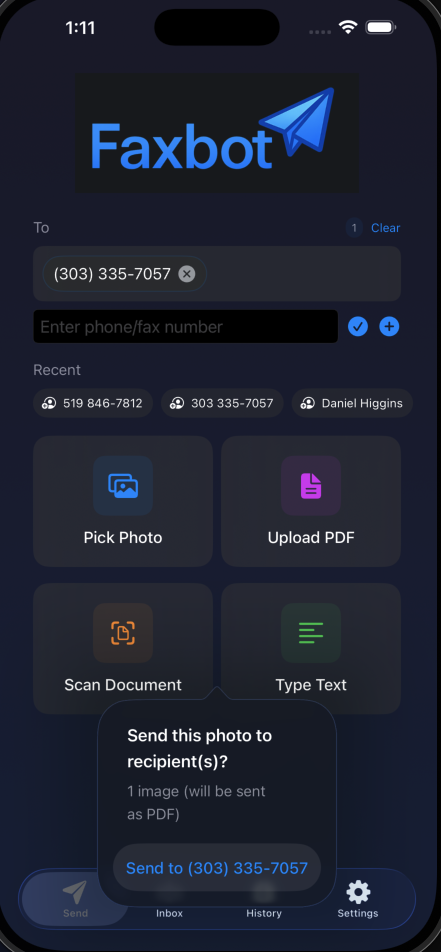
Send screen
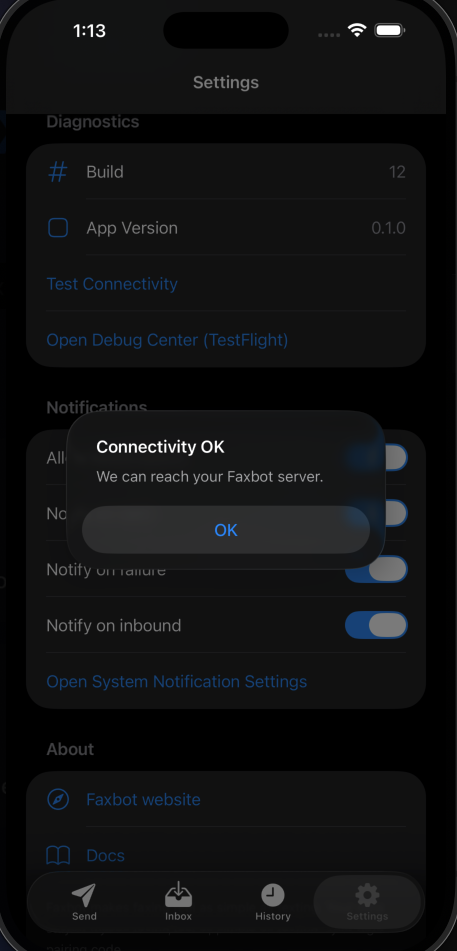
Connect to Server
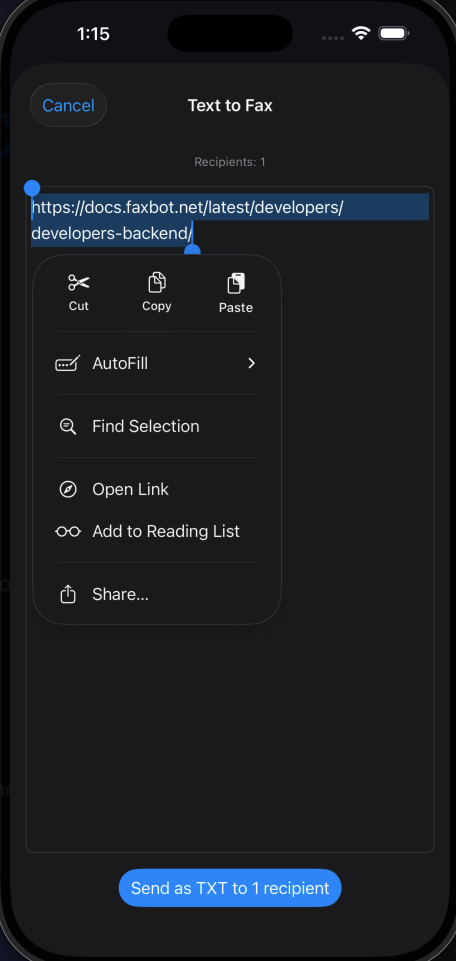
TXT → Fax